
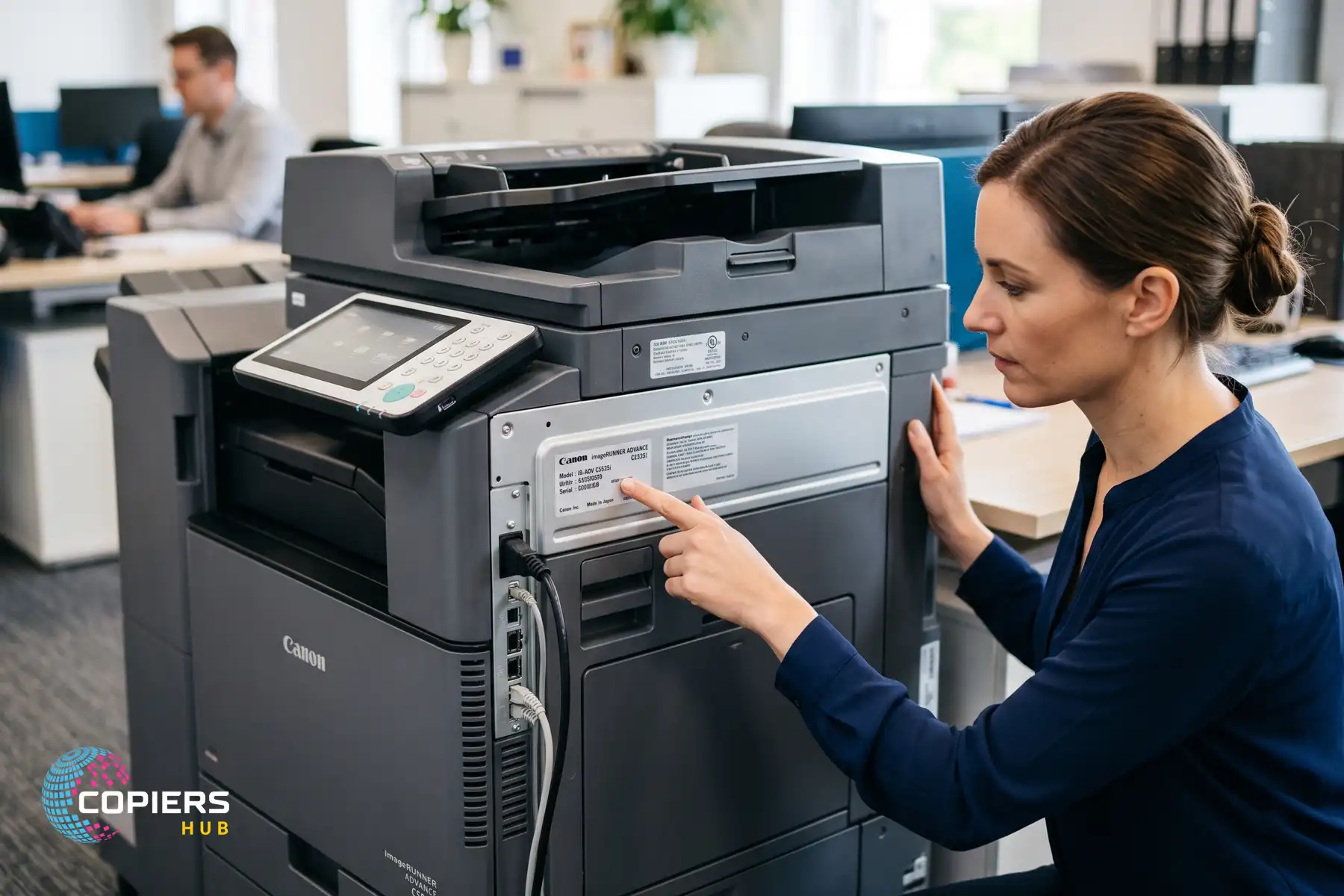
Copier Model Number – Where to Find It, By Brand
Ever called a supplier for toner and got stuck when they asked for your copier model number? You are not alone. Most office managers only look for this detail when something breaks or runs low on supplies. This guide shows you exactly where to find it, so your next order or service call goes smoothly.
Why Knowing Your Copier Model Number Matters
Your copier model number is the key to almost everything you do with the machine. You need it to order the right toner, request a service call, or check if a part is still in stock. Without it, you are guessing, and guessing with printer supplies often means the wrong cartridge arrives at your office.
Suppliers use the model number to match consumables and parts to your exact device. A Bizhub 227 and a Bizhub 287 look similar on the outside, but they use different toner and maintenance kits. Getting this one detail right saves you time, money, and a second trip to check the box against your machine.
What Is a Copier Model Number?
A copier model number is the code the manufacturer assigns to identify the exact device you own. It tells suppliers and technicians the make, series, and sometimes the speed or configuration of your printer.
You will usually see it printed as a mix of letters and numbers, such as bizhub C227 or WorkCentre 6515. This is different from a serial number, which identifies your specific unit rather than the model itself. Manufacturers use the model number to determine the correct toner, drum, and spare parts for your machine, so getting the exact code matters more than you might expect.
Where to Look: Common Model Number Locations
Copier model number location varies by brand, but most machines follow a similar pattern. Check these four spots first before you start pulling the copier apart.
Front panel or control panel area
Many copiers display the model name right on the front panel, near the screen or brand logo. This is the quickest place to check if you just need a fast answer.
Inside the front or side cover
Open the front door or side panel where you load toner. Manufacturers often place a label with the model number and serial number just inside, away from dust and handling.
Back or side information label
Most printers carry a rating label on the back or side, listing the model number, power details, and manufacturer information. Look for a white or silver sticker with small printed text.
Under trays or near the paper feed
On some multifunction printers, the label sits near the paper tray or feed area. If the other spots come up empty, slide out the main paper tray and check the surrounding panel.
How to Read the Model Label Correctly
Once you find the label, reading it correctly matters just as much as finding it. Labels often list several numbers together, so it helps to know what you are looking at.
Distinguishing model number from serial number
The model number identifies the device type, while the serial number identifies your specific unit. The serial number is usually longer and appears near a barcode. If you only give a supplier your serial number, they may not be able to identify the correct toner or part.
Identifying brand prefixes
Look for familiar prefixes like Bizhub, imageRUNNER, or WorkCentre. These prefixes tell you the brand and product family before you even check the full code.
Noting speed, finisher, and variant codes
Some model numbers include extra letters or numbers for speed, colour capability, or an attached finisher. A code like C227 tells you it is a colour version of the 227 series. These details help a supplier identify the correct match for your exact configuration, so include the full code when you order.
For a deeper explanation of what each part of the code means, this guide on how to read copier model numbers walks through the logic manufacturers use.
Finding Your Model Number by Brand
Each manufacturer places the model number in a slightly different spot. Here is where to check based on the brand you own.
Konica Minolta (Bizhub series)
On a Konica Minolta copier, check the front cover near the toner compartment first. You will also find the model number on the rating label on the back panel, listed alongside the serial number. Once you know your exact Bizhub model, you can browse matching Konica Minolta supplies to order the correct toner or parts.
Canon (imageRUNNER / imageCLASS)
Canon copiers usually display the model name on the front panel display or control screen. You can also check the side or back label for the full imageRUNNER or imageCLASS code. Once identified, it is easy to choose Canon toner that matches your exact model.
Ricoh, Lanier, Savin
Ricoh, Lanier, and Savin machines are often built on the same hardware, so the labels look similar across brands. Check the inside of the front cover or the back panel for the model code. The Ricoh copier model number typically starts with a letter series followed by three or four digits.
Xerox (WorkCentre, VersaLink, AltaLink)
Xerox copiers list the model number clearly on the front control panel, often right below the brand name. You can also find it inside the front cover near the toner cartridge slot. WorkCentre, VersaLink, and AltaLink each use distinct numbering, so the full code helps avoid confusion between series.
HP LaserJet and PageWide Enterprise
HP printers keep the model number on a label on the back or underside of the unit. Look for text starting with LaserJet or PageWide, followed by the specific series number. HP LaserJet model number location can vary slightly by device size, so check both the back panel and underneath the main tray if you cannot find it right away.
How to Find Your Model Number via the Control Panel
If the physical label is hard to read or missing, the control panel usually has the answer stored digitally.
Using the Device Information or System Info menu
Most modern copiers include a Device Information or System Info option in the main menu. Tap through the settings page and you will usually see the model number listed alongside the software version and network details.
Checking the Counter or Meter screen
Some machines list the model number on the same screen used to check page counts or meter readings. This screen often shows under a Counter or Meter menu, useful if you already check meter data regularly.
Printing a configuration or status report
Nearly every copier can print a configuration or status report directly from the menu. This report lists the model number, serial number, installed options, and network settings in one place, which is handy if you need several details for a service call.
How to Find Your Model Number on a Connected PC
If your copier is connected to a computer, you can often find the model number without walking over to the machine.
Windows: Devices and Printers / Printer properties
Open Devices and Printers from the Windows control panel, then right-click your printer and select Properties. The model number usually appears in the general tab, along with the manufacturer name and installed driver details.
macOS: System Settings > Printers & Scanners
On a Mac, go to System Settings, then Printers & Scanners. Select your printer and check the details panel, which usually lists the exact printer model used by the installed software.
Using the printer’s web interface (EWS)
Most network printers run a built-in web interface, accessible by typing the printer’s IP address into a browser. This page, often called EWS, shows device information including the model number, firmware version, and supply status, all without needing to check the printer in person.
What to Do If the Label Is Missing or Damaged
Labels wear out over time, especially on older machines that get moved or cleaned often. If yours is missing or too faded to read, you still have a few solid options.
Using serial number and service reports to identify the model
If you have any past service reports or invoices, they usually list both the model and serial number together. Even with just the serial number, a technician or supplier can often determine the model through their records.
Contacting your service provider or leasing company
If your copier is leased or under a service contract, your provider already has the model number on file. A quick call or email is often the fastest solution when the physical label is unreadable.
Taking clear photos for supplier support
If you cannot find any paperwork, take clear photos of the control panel, front panel, and any visible label fragments. Suppliers can often identify the exact model from these photos, even when the printed text is too damaged to read.
Tips for Recording and Sharing Your Model Number
Once you find your model number, save yourself the trouble of searching again by recording it properly.
Storing model details in your asset register
Add the model and serial number to your office asset register alongside the purchase date and location. This small step means anyone in the office can check the details without hunting for the machine.
Including model and serial numbers when ordering toner or parts
Always include both the model and serial number when you order toner or parts. This helps your supplier confirm the exact match before shipping, cutting down on returns or delays. Once you have this detail on hand, you can order copier parts and supplies with confidence that everything fits your machine.
Keeping a photo of the label on file
Take a photo of the label and save it somewhere easy to find, like a shared drive or asset spreadsheet. This means you always have a backup if the physical label fades or gets damaged later.
Frequently Asked Questions
Where exactly is the model number on a Konica Minolta copier?
Check the front cover near the toner area first, then the rating label on the back panel if you need to confirm the full Bizhub code.
Is the model number the same as the serial number?
No. The model number identifies the device type, while the serial number identifies your specific unit. Suppliers usually need both, but the model number determines which toner and parts fit your machine.
How do I find my copier model if the sticker is worn off?
Check the control panel menu for a Device Information screen, print a configuration report, or contact your leasing or service provider, since they usually have the model on file.
Can I identify my copier model from the toner cartridge?
Sometimes. Toner cartridges list compatible model numbers on their packaging or the cartridge itself, which can help confirm your printer model if other labels are missing.
Do I need the full model code or just the base series?
Always give the full code, including any letters for colour, speed, or finisher options. The base series alone might not identify the exact toner or part you need.
How can I find my model number from the printer driver on Windows?
Open Devices and Printers, right-click your printer, and select Properties. The model name usually appears in the general tab next to the manufacturer details.
What information should I give my supplier when ordering parts?
Give the full model number, the serial number, and, if possible, a photo of the rating label. This helps the supplier confirm an exact match before shipping.
Why does my model number have extra letters or numbers at the end?
Extra letters or numbers usually indicate a variant, such as a colour model, a specific speed rating, or an attached finisher. These details help identify the exact configuration of your machine, not just the base series.
Finding your copier model number takes a few minutes once you know where to look. Check the control panel, the front cover, or the back label, and keep a record on file so you never have to search again. For more guides like this one, browse more copier tips on our blog.