
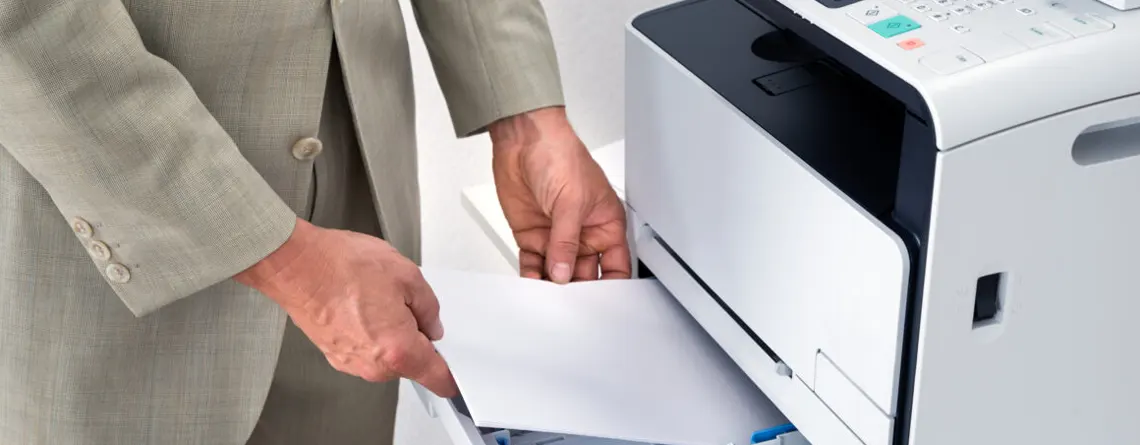
Copier Downtime Solutions – Keep Your Office Running
A copier that stops working at the wrong moment can throw an entire workday off track. Whether you’re managing a busy reception desk or overseeing a fleet of multifunction devices across several floors, downtime is a real cost. This guide covers practical copier downtime solutions you can act on today, from daily maintenance habits to choosing the right parts online.
What Is Copier Downtime?
Copier downtime is any period when your device can’t complete print, copy, scan, or fax jobs. It covers everything from a five-minute paper jam to a full fuser failure that keeps the machine out of action for days.
Downtime can be planned, like a scheduled maintenance visit, or unplanned, like an unexpected hardware fault mid-morning. Unplanned downtime is the one that hurts. It catches staff off guard, disrupts workflows, and often happens at the worst possible time. The goal of any good copier management strategy is to minimise both the frequency and the duration of these stops.
Why Copier Downtime Hurts Your Business
Lost Productivity and Missed Deadlines
Every minute a copier is offline, someone is waiting. In a small to medium office, that ripple effect spreads fast. Reports don’t get printed, invoices don’t go out, and proposals miss their window. Multiply that across a team and the lost time adds up quickly.
Research backs this up. A 2024 study from EMA Research found that smaller organisations saw their downtime costs double compared to 2022. While those figures cover broader IT outages, the productivity loss mechanism is the same: people stop being able to do their jobs.
Impact on Staff Morale and Customer Service
Beyond the numbers, there’s a people problem. Staff who spend time fighting with a broken copier get frustrated. That frustration bleeds into how they handle customers, how they prioritise tasks, and how they feel about coming to work.
If your office relies on printing for client-facing documents, a downed copier can directly affect service quality. Proposals arrive late. Invoices get delayed. Customers notice. A reliable device isn’t just a convenience; it’s part of how you present your business.
How Often Copiers Fail in Australian Offices
Typical Failure Patterns by Device Type
Multifunction copiers in small to medium workplaces tend to fail in predictable patterns. Paper jams are by far the most common complaint, followed by toner-related print quality issues, fuser errors, and network connectivity problems. Higher-volume machines cycle through their consumables faster, which means maintenance kit replacements and roller wear become regular events.
Devices from Konica Minolta, Ricoh, Canon, Xerox, and Sharp each have their own service intervals and common wear points, but the underlying failure categories are broadly similar across brands.
Common Triggers in Small and Medium Workplaces
In Australian offices, a few specific triggers come up repeatedly. Humidity is one. During summer months, paper absorbs moisture and can cause repeated jams through the fuser unit. Dust buildup in poorly ventilated server rooms or copy rooms is another. Incorrect paper stock, shared machines without any usage guidelines, and skipped maintenance schedules round out the list. Most of these are controllable with the right habits in place.
What Causes Copier Downtime?
Hardware Issues
The hardware inside a multifunction copier takes a beating over time. The fuser unit, which uses heat and pressure to bond toner to paper, is one of the most common failure points. When fuser rollers wear out, you get paper jams, wrinkled output, and smeared prints. Drum units degrade after a certain number of pages and cause streaks or faded areas on printouts. Feed rollers wear smooth over time and start misfiring paper.
Using low-quality parts to replace these components might seem like a cost-saving move, but it often creates more problems than it solves. Cheap fusers and rollers fail faster, void warranties, and can damage other components in the process.
Consumables and Paper Handling Problems
Toner cartridges are a frequent culprit. A copier not printing after refilling toner is a common issue, often caused by using incompatible or low-quality cartridges. Paper handling problems, such as jams from worn rollers, incorrect paper weight, or damp stock, account for a large share of day-to-day stops.
Software and Network Connectivity Errors
A copier not responding to print jobs isn’t always a hardware problem. Driver conflicts, outdated firmware, and IP address changes on the network can all cause the device to appear offline even when it’s physically fine. These issues are often overlooked but are relatively quick to fix once you know where to look.
How to Prevent Copier Downtime
Regular Maintenance and Cleaning Schedules
Prevention is cheaper than repair. Setting a monthly cleaning schedule, checking paper trays, clearing dust from vents, and wiping down the scanner glass takes less than 15 minutes per device. It’s also worth logging the last time consumables were replaced so you’re not caught off guard when they run out.
For high-volume environments, quarterly professional servicing is worth the cost. A technician can spot worn parts before they fail and replace them during a planned window rather than an emergency.
Using the Right Toner Cartridges and Maintenance Kits
Matching your toner and maintenance kits to the device spec matters more than most people realise. Ricoh maintenance kits, for example, are designed around specific page-count intervals and component roles. Installing a kit too late, or using a non-compatible version, leads to jams, print defects, and premature wear on other parts.
The same applies to Canon consumables and those for Konica Minolta, Xerox, and Sharp. Always verify the part number against your device model before ordering.
Keeping Firmware and Drivers Up to Date
Manufacturers release firmware updates to fix bugs, improve compatibility, and patch security issues. Running outdated firmware is a common cause of the copier not responding to print jobs, especially after network changes or OS updates on workstations. Set a reminder to check for updates every quarter, or sign up for email alerts from the manufacturer’s support portal.
Best Practices for Daily Copier Care
Checking Error Logs and Paper Path Issues
Most modern multifunction copiers log error codes internally. Checking these logs once a week takes only a few minutes, but it can flag recurring issues before they become serious. A jam code that appears three times in a week is telling you something about a worn roller or misaligned tray.
Training Staff on Correct Usage
Incorrect usage is behind more downtime events than many managers realise. Loading the wrong paper size, overfilling the tray, yanking jammed paper instead of following the on-screen guide, and ignoring toner-low warnings all contribute to breakdowns. A short 10-minute briefing for new staff and a laminated quick-reference card near the machine goes a long way.
Monitoring Usage Levels and Supplies
Keep an eye on page counts relative to your consumable intervals. If your Konica Minolta toner cartridge is rated for 20,000 pages and you average 4,000 pages a week, you should be reordering before week four, not after the machine stops. Most devices display remaining toner levels on the control panel or via a web-based admin interface.
Quick Fix Steps When Your Copier Stops Working
Rebooting and Checking Obvious Error Messages
When a multifunction copier stops printing, the first step is always the simplest: power it off, wait 30 seconds, and power it back on. This clears temporary errors and resets the internal memory. While it’s restarting, note any error codes displayed and look them up in the manufacturer’s error messages guide. Most error codes have straightforward causes and solutions documented in the user manual or the support portal.
Clearing Paper Jams and Checking Toner Status
Copier paper jam solutions start with following the on-screen guide rather than pulling paper out at random. Open the indicated covers in order, remove any visible paper gently without tearing it, and check for small fragments that can cause repeat jams. Once the jam is cleared, check the toner status. A low or empty cartridge can trigger error codes that look unrelated to the toner itself.
Restarting Network and Print-Server Connections
If the device shows as offline on workstations, check the network connection before assuming hardware failure. Restart the router or print server, confirm the device’s IP address hasn’t changed, and re-send the print job. A network printer not printing is often a connectivity issue that resolves in under five minutes once you know to look there first.
When to Call a Technician vs. DIY Repairs
Signs You Need Professional Help
Some problems are clearly beyond in-house troubleshooting. If the copier displays a service code rather than a standard error message, that’s a signal for a technician. Grinding or squealing noises from inside the machine, repeated jams in the same location after you’ve cleared them, and visible damage to the fuser or drum are all signs that professional service is needed.
For Canon devices, sourcing genuine Canon parts through a reputable supplier and having a technician install them is often the safer path. Authentic drum units, fusers, and rollers are engineered to work within the machine’s tolerances. Off-brand alternatives frequently fall short.
Limitations of In-House Troubleshooting
There’s a practical limit to what non-specialist staff should attempt. Clearing paper jams, replacing toner cartridges, and restarting network connections are all reasonable DIY tasks. Replacing a fuser, drum unit, or main circuit board is not. Attempting these without the right training and tools risks causing more damage and voiding the device’s service agreement.
How to Choose the Right Replacement Parts and Supplies
Matching Parts for Konica Minolta, Ricoh, Canon, Xerox, and Sharp
Every brand has its own part numbering system and compatibility matrix. A Konica Minolta toner cartridge for one model won’t necessarily fit another in the same range. Before ordering, note the exact model number from the device label, not just the product family name. Cross-check the part number on the supplier’s website against that model.
The same care applies to maintenance kits, drums, fusers, and rollers. Copier replacement parts online are easy to find, but the right match requires a precise model number.
Avoiding Cheap, Low-Quality Toner and Kits
Cheap toner cartridges in Australia are widely available, but the price difference often signals a quality difference. Low-yield or poorly formulated toner can leave residue inside the machine, cause fuser contamination, and produce inconsistent print quality. Over time, this increases the frequency of copier fuser replacement and roller replacement cycles, costing more than the original saving.
Genuine toner cartridges in Australia, sourced from authorised suppliers, are formulated to the device’s specifications. They tend to yield the rated page count more reliably and put less stress on internal components.
Where to Buy Reliable Parts Online in Australia
Look for Australian suppliers with clear compatibility databases, transparent return policies, and phone or email support. A supplier that can confirm a part number against your model before you order is worth more than the cheapest listing on a marketplace. For Ricoh, Konica Minolta, Canon, Xerox, and Sharp supplies, dedicated copier parts suppliers will generally have better stock depth and technical knowledge than general electronics retailers.
Building a Copier-Downtime Response Plan
Assigning Roles and Responsibilities
A response plan only works if people know their role. Designate one person per office as the first point of contact for copier issues. That person handles basic troubleshooting, contacts the supplier or technician when needed, and keeps a log of issues. In a multi-site environment, each location should have a designated contact.
Keeping Backup Copiers or Printers
In offices where printing is critical to daily operations, having a secondary device, even a basic desktop printer, can be the difference between a minor disruption and a full work stoppage. It doesn’t need to match the main device’s output quality; it just needs to be functional when the primary machine is down.
Creating a Simple Checklist for Common Issues
A one-page copier downtime checklist posted near the machine removes guesswork. It should cover: restart steps, how to clear a jam safely, where to find the toner replacement guide, the service contact number, and where to log the issue. Simple and visible beats detailed and filed away.
Tools and Resources for Copier Downtime Management
Remote Monitoring and Alert Tools
Many enterprise copier brands offer remote monitoring through their management software. Konica Minolta’s PageScope, Ricoh’s @Remote, and Canon’s uniFLOW can track toner levels, page counts, and error events across multiple devices. These platforms send alerts before consumables run out and flag recurring errors automatically. If you’re managing more than a couple of machines, this kind of visibility is worth setting up.
Support Portals and Knowledge Bases
Every major brand maintains an online support portal with firmware downloads, driver updates, error code lookup, and maintenance guides. Bookmark these for the brands you run. For broader guidance on specific devices and consumable choices, check out more copier guides covering Konica Minolta care, toner selection, and troubleshooting by brand.
How to Track Downtime and Measure Improvements
Recording Stops, Duration, and Causes
A simple spreadsheet or even a paper log near the machine is enough to start. Record the date, time, duration, device affected, the cause if known, and how it was resolved. Over three to six months, patterns emerge. If the same device is going down twice a week, that’s a replacement conversation. If jams are always from a specific tray, that’s a roller or alignment issue.
Using Data to Plan Upgrades or Replacements
Copier lifecycle management decisions are easier with data behind them. If a device is generating more service costs per quarter than a lease on a newer model, the numbers make the case. Tracking downtime formally gives you concrete figures to take to a supplier or a budget meeting rather than relying on memory and frustration.
Frequently Asked Questions: Copier Downtime Solutions
What causes a copier to stop printing suddenly?
The most common causes are paper jams, empty or faulty toner cartridges, network disconnection, and fuser errors. Start with the error code on the screen and work from there.
How often should I replace maintenance kits and rollers?
It depends on the brand and model. Most maintenance kits are rated by page count, typically between 100,000 and 200,000 pages. Check the device’s user guide or the supplier’s spec sheet for the recommended interval.
What toner cartridges work best for reducing downtime? Genuine toner cartridges matched to your specific model give the most consistent results. They’re formulated to the fuser’s temperature requirements and tend to produce less residue buildup over time.
How can I train staff to avoid common copier errors?
A short verbal walkthrough when someone is new, combined with a laminated quick-reference card near the machine, covers most common mistakes. Focus on correct paper loading, what to do during a jam, and when to call for help rather than trying to fix it themselves.
When should I repair versus replace a copier?
If repair costs over 12 months exceed half the cost of a comparable replacement device, it’s usually time to upgrade. Age matters too: a device more than seven years old will struggle to source parts and may not support current drivers.
How long is too long for acceptable copier downtime?
For most offices, anything over two hours for an unplanned outage is disruptive. For critical print environments, even 30 minutes warrants a response plan. Set your own threshold based on how much of your work depends on printing.
What are the signs my copier needs professional servicing?
Service codes on the screen, repeated jams in the same location, grinding or squealing noises, lines across all output, and visible damage to internal components are all signs you need a technician, not a quick fix.
How can I reduce downtime in an office with multiple Konica Minolta or Ricoh machines?
Use the brand’s remote monitoring tools to track consumable levels and error logs across all devices. Stagger maintenance kit replacements so you’re never servicing multiple machines at once. Keep a small stock of commonly used toner and paper on hand.
What are the most reliable online sources for copier parts in Australia?
Look for suppliers that are brand-authorised or clearly list compatibility by model number. Good suppliers will confirm the part number matches your device before you order and offer returns if there’s a compatibility issue. Buying office copier parts in Australia from a specialist supplier is generally safer than a general marketplace listing.
How can I create a simple copier-downtime checklist for my team?
Keep it to one page. Include the steps to restart the device, how to clear a jam, where the toner replacement instructions are, the service contact number, and a line to log the issue with the date and cause. Laminate it and attach it to the wall near the machine.